SD Card Duplicator With Unique Data Streaming

CID value on SD card

SD Card Duplicator UPDATE:

The Drive Manager software which powers this SD Card Duplicator now offers the ability to write CID values to the SD cards. The CID (Card Identification) of a Secure Digital (SD) card is a unique identifier embedded within the card’s read-only memory by the manufacturer. It serves as a distinct serial number for the card and typically consists of specific information such as the card’s manufacturing date, manufacturer ID, and other proprietary data.

The CID number is accessed through a hardware chip and vendor command on a compatible host system, such as an SD card reader or a specialized device like the SD160PC SD Card Duplicator mentioned here. This unique identifier can be valuable for various purposes, including device authentication, data encryption, and tracking of individual SD cards within a system.


Continued…

You’ve heard the quote “the devil is in the details” and when it comes to duplication of data to SD cards, nothing can be more true. Today we talk about an SD Card Duplicator which provides the ability to data stream unique content to each card.

Typically a user would duplicate the same content to SD cards because they intend to make many copies of the same content. However, many companies who use SD media (or microSD media) want to not only copy the same content to each card, but also copy unique data to each card.

Let us dig a little deeper with an example:

It is very common for companies who generate map data also want to protect their mapping information. Maps are expensive to make and often hold proprietary information that companies want to protect. So when it comes time to use an SD Card Duplicator to make hundreds or thousands of copies, it is required to have a protection scheme included with the duplication solution.

A common method to provide protection on SD card media is using the CID number of the card. The CID number is a value which is put into read-only memory of an SD card and that CID number is unique to each card and follows the card around. It is not possible to copy or duplicate the CID number—it is a value which is designed to only be read. In addition to the unique number, it requires specific vendor commands to read the CID number from the card itself.

With an SD Card Duplicator from Nexcopy it is possible to read the CID number because Nexcopy uses the special vendor commands to read the CID value.

So this is what a mapping company can do with an SD Card Duplicator:

  • Encrypt the mapping data
  • Include a text file with the decryption code for the maps
  • Include the CID number of the physical card in the text file mentioned above
  • Since CID numbers are unique to each card, write the unique key code text file to each card

With the SD Card Duplicator the user can export the CID numbers in bulk during the duplication process. When the CID numbers are exported in bulk, the company can write a script to generate key code text files which can only be decrypted by the card which holds the correct CID value.

The final step of the SD Card Duplicator would be writing the encrypted map data to all the SD cards (or microSD cards) and make a second duplication pass to perform the unique data stream of the encrypted file which holds the CID number and key code to each individual card.

There are certainly some custom scripts or batch files which the end-user would need to write, but the bulk of the duplicator process would be done by the Nexcopy SD Card Duplicator.

SD Card Duplicator

Secure Digital (SD) is a proprietary non-volatile memory card format created by the SD Association (SDA) for use in portable devices.

The standard was introduced in August 1999 as an improvement over MultiMediaCards (MMCs) by a collaboration of SanDisk, Panasonic (Matsushita), and Toshiba, and has since become the industry standard.

In January 2000, the companies also established the SD Association (SDA), a non-profit organization, to promote and develop SD Card standards.

Continue Reading

Did Aleratec Go Out of Business? 2022

From all accounts it appears Aleratec closed their doors and went out of business starting in February 2022.

GetUSB.info attempted several calls to the corporate office in search of comment, but received no response. Furthermore, it appears that Google has removed Aleratec from their search results because their domain www.aleratec.com has been inactive for more than 30 days. We are posting this information in case end-users are looking for company support or warranty information.

Aleratec, Inc. was a family-owned California-based company with two decades of experience designing, developing, and marketing high-performance, dependable, and easy-to-use products.

Greg Morris, CEO of Nexcopy Inc, a similar company profile and also based in Southern California, commented today after request: “I’ve known Perry Solomon, the CEO, well over twenty years and he was always a good person to speak with regarding industry trends and business practices. Extremely friendly and approachable. Perry was focused on bringing a solution to the market which brought true value to the end-user. I wish him the best of luck with his next business adventure.”

Aleratec offered PC-based and standalone flash memory duplicators, as well as CD and DVD duplicators, hard drive duplicators, and hard drive demolishers. In addition, Aleratec provided a “charge and guard” cabinet for charging portable devices such as tablets. The charge and guard cabinet proved especially useful in schools.

Some products are still available online at the time of this posting, but the majority of models appear to be out of stock or on back order.

If Aleratec would like to comment or provide information for post-sales support and parts, please reach out at: gmo [at] getusb [dot] info and we can post the information in this article.

aleratec out of business

Continue Reading

Encrypt USB Flash Drive on Mac and Windows

Encrypt USB Flash Drive For Both Mac and Windows

This article explains how to encrypt data which can be decrypted on both a Mac and Windows computer.

Microsoft Windows accounts for nearly 80% of desktop computers, with Apple OS accounting for about 18% of the market share (as of Q3, 2021). With this in mind, it is very common for users to want encrypted data to be shared on both Mac and Windows computers. For example, at work, Microsoft Windows is used, while at home, the employee uses a Mac computer. It is not easy to share encrypted data between these two operating systems. There is no installed solution from Microsoft or Apple that provides cross-platform encryption and decryption.

There are two options for those who want to decrypt files on both a Microsoft Windows and an Apple Mac computer:

  • Individual users can purchase software that encrypts and decrypts files for both Mac and Windows computers.
  • The other solution is buying a physical drive which supports decryption on either operating system.

The second option is better suited to a business. This is true because the employee or individual is not required to purchase additional software.

The only known solution that has the following three characteristics is a product by Nexcopy. This is a company which provides feature-rich flash drive duplicator solutions, but also provides advanced functions to flash drives, such as cross-platform encryption.

This is how the Nexcopy USB flash drive encryption solution works:

  • PC-based software is used to encrypt the data
  • Included with the encrypted data are two software utilities loaded onto the flash drive
  • The utilities run from the flash drive and decrypt the data when the correct password is entered
  • The applications do not require installation; they run directly from the flash drive
  • PCViewer.exe is the Windows-based utility – no admin rights required
  • MacViewer.app is the Mac-based utility – no admin rights required
  • By launching the correct utility and entering the correct password the files will be decrypted and displayed on the associated operating system

Please keep in mind there is a difference between the term “encryption” and the term “copy protection.”

The process of encoding information is known as encryption. This process converts the original representation of the information, for example plaintext, into ciphertext. Only the authorized party who knows how to decipher the ciphertext back into plaintext can reorganize and piece it back together. The important thing to remember is that once the decipher is complete, the user can do whatever they want with the plaintext. That content can be copied, duplicated, shared, streamed, and screen captured by the user.

Copy protection includes the process of encoding; however, it adds an additional layer of security by prohibiting the user from doing anything other than viewing the content, such as copying, duplicating, sharing, streaming, and screen capture. To put it another way, the files can only be viewed and not modified.

Encryption is a valuable technology in situations where the content owner trusts the person with the password; however, security is required in the event that the USB flash drive is dropped, stolen, or misplaced. By encrypting the content, unauthorized users are prevented from accessing it.

Copy protection is a valuable technology for protecting content while allowing multiple users to view it. For example, a teacher may have valuable lessons that they want all students to see, but they do not want the lessons saved or shared with other classes. This is an excellent application for copy protection.

Nexcopy offers USB duplicator solutions for mass production of USB encrypted flash drives. Nexcopy also offers large-scale USB duplicators for copy-protected flash drives. Depending on the individual or company’s needs, there is a solution for those who require encryption for both Windows and Mac computers.

Continue Reading

NAND Memory Continues High Demand

Micron memory

Micron plans to close Shanghai DRAM operations and focus more on NAND memory market.

Micron Memory, a USB semiconductor company based out of Boise ID, is reportedly planning to close their Shanghai operations which uses technology resources to develop DRAM technology. I source not willing to comment indicates a lack of talent or “loss of technical know-how” is a primary reason for the closure.

Micron expects the Shanghai Design Center to be operational until December of 2022 at which time the facility will be close and employees will be redistributed to either a US or India Micron location. The Shanghai location employees nearly 150 engineers and technicians.

Although reluctant news for the DRAM market segment, this does point to increased demand and interest for NAND memory. The NAND memory market continues to grow as storage demands increase and storage capacities increase. A primary NAND memory market is the USB flash drive market with the highest volume of commodity products, a number which capsulates the mobile phone market.

Micron was founded in Boise, Idaho, in 1978 as a semiconductor design firm. In 1981, the company moved from consulting to manufacturing with the completion of its first wafer fabrication unit (“Fab 1”), producing 64K DRAM chips. Micron went public in 1984 under the ticker symbol MU.

Other articles from this website which mention Micron products and technology.
Continue Reading

Eject USB Flash Drive From Windows Command Line

Microsoft does not provide ways to eject USB flash drives with a single click, or automatically. Universal Serial Bus (USB) is the #1 method for expanding storage in Windows, yet Microsoft makes ejecting a storage device such a manual process! Frustrating to many, like you, because you are here. {wink}

Today we cover how to eject a USB flash drive in Windows in the command prompt. In addition, this article also provides a software way to eject a USB flash drive with the single click of a button. Yes, that is right, a single click!

Let us start by covering how to eject a USB drive using the command prompt.

Like mentioned above, Microsoft does not make this easy. The user must get into DiskPart, list the volumes (drives) connected, select the specific volume (drive) then eject by typing “release.”

The above commands may be performed via the command prompt, but honestly it’s a pain because all the typing involved and manually selecting the device. This process needs to be automated. {hint}

If you are reading this article you want to make things quick, easy and simple.

Nexcopy solved this problem with a free utility that doesn’t require installation, doesn’t require Admin rights, and doesn’t require you to select the drive. The tool is ultra-quick and ultra-easy. In addition, anyone can bundle the free exe file into their own software to automate the process.

The free software tool is called USB Eject Button

Here is the download link to eject USB flash drives from Windows command prompt

Below is the command prompt using a single word to eject a USB flash drive. The command is “release”

USB eject via command prompt

However, what if multiple USB flash drives are connected? Is it still just as easy to eject all the USB flash drives? The answer is yes. The USB Eject Button tool works by automatically selecting the last USB flash drive connected to be the first USB flash drive ejected.

Below is an example. We connected “Drive One” first, then “Drive Two” and finally “Drive Three.”

eject USB flash drive in Windows command prompt

We then ran the command to eject the USB flash drives. The tool ejected; Drive Three (F), then Drive Two (E) and last, Drive One (D).

eject multiple USB flash drive command prompt

Again, Nexcopy provides this tool for free and doesn’t require installation, doesn’t require Admin rights, and doesn’t require a User to select a drive. The tool is free to bundle with other applications if one chooses.

The USBEjectButton.exe file used for the command prompt, has a very slick graphical user interface. Simply download the zip file and extract it to any location. Then make a shortcut to the exe file and place the shortcut on your desktop, or better yet, the taskbar in Windows.

The USB Eject Button tool is designed so when a User clicks the shortcut icon, that click triggers the ejection process and ejects the USB flash drive. Simple – Slick – Instant

There is even a Windows happy sound so the User knows it happened.
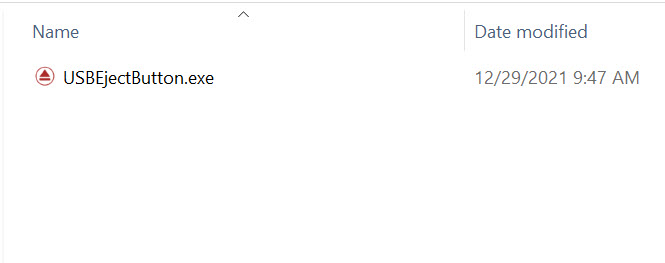
USB Eject Button exe

With the shortcut in the dashboard of Windows it is now possible to eject a USB flash drive from Windows with the single click of a button! Brilliant.

USB Eject Button screenshot

Here is a video showing the process of ejecting a USB flash drive with the single click of a button, along with ejecting the USB flash drive in the command window.

So what does this USB Eject Button do if there is no USB flash drive connected? If there is no flash drive connected and the user clicks the shortcut link, then a Nexcopy website page appears in your default browser.

The website page provides information about different Nexcopy USB products. Given Nexcopy put in the work to make such a nice, simple and free utility, this is not that intrusive. The webpage lists the four different types of flash drives Nexcopy offers:

  • Copy Secure drives which are USB flash drives that provide copy protection to MP4 video files, MP3 audio files, PDF files, HTML pages, Text files, image files and more.
  • Lock License drive; a technology having the default state of the USB stick as write protected (locked) and the user can programmatically unlock the drive.
  • Disc License drives which create true USB CD-ROM flash drives from an ISO file. This is not a software solution, but a hardware solution.
  • USB encryption flash drives which protect all content with a password and strong AES encryption technology.

Source: Eject USB flash drive from command line in Windows

Continue Reading

Check for Bad Sectors on USB Flash Drive

This how to tutorial describes a simple way to check for bad sectors on a USB flash drive. The instructions below will also fix any bad sectors, if possible, during the scanning process.

A bad sector on a flash drive is a portion of memory on the flash drive which cannot be accessed, written to, or read from and therefore cannot be used. A bad sector on a flash drive sounds easy enough to diagnose, but it’s important to know there are two types of bad sectors: hard and soft.

Physical damage to a USB flash drive will create a hard bad sector. A hard bad sector cannot be repaired or fixed and is typically induced from physical abuse. A good example: leaving a flash drive in your pocket and it went through the wash, or the device was dropped and hit the ground is such a way, physical damage happened to the memory.

A soft bad sector on a flash drive are memory logic problems. A soft bad sector can occur from a software or data error during the write process. In lower quality flash drives, it is possible the incorrect firmware was written into the USB controller ROM and thus creates instability via soft bad sectors.

Bad sectors cannot be repaired; however soft bad sectors can be repaired.

The soft bad sectors can be fixed by using the CHKDSK utility in the Windows operating system. This same utility will also flag any hard bad sectors not to be used again, and of course not repaired.

Some signs of a bad sector on a flash drive include:

  • Cannot read a file on the flash drive
  • A file location is no longer available
  • Unable to format the USB flash drive
  • A disk read error occurs during operation

In our opinion, run the check disk one time to see if your issue is resolved, but if subsequent scans are required, we recommend discarding the flash drive to avoid further issues.

Running the chkdsk scan is really easy:

Insert flash drive to computer

Using Windows Explorer navigate to the drive letter

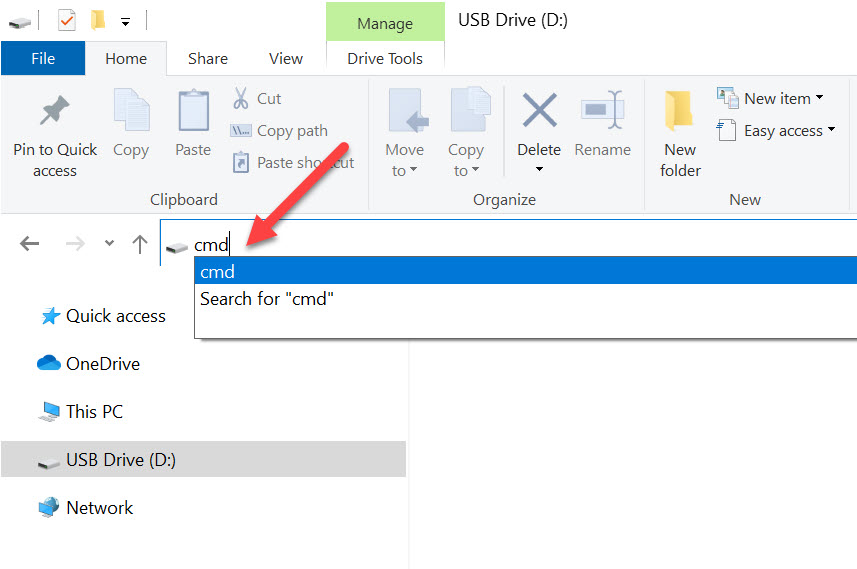
In the Explorer window type cmd and press enter

access usb flash drive cmd command

Once inside the command line utility type chkdsk d: /f /r /x and click Enter. NOTE: *The letter d represents the drive letter of the flash drive.

chkdsk commands for usb flash drive

  • The /f parameter tells CHKDSK to fix any errors it finds.
  • The /r parameter tells Windows to repair/restore bad sectors (if possible).
  • The /x parameter unmounts any “handles” to the drive or said another way, this step will not allow any other resource to access the flash drive during the scan.
Continue Reading

Silicon Motion (SMI) Gains Over 580% In Valuation

Silicon Motion’s decade-long growth drives a 580% return for investors.

Silicon Motion website logo

Silicon Motion Technology Corporation (NASDAQ: SIMO), founded in 1995, has become a leading developer of microcontroller ICs for NAND flash storage devices. The company also designs and markets high-performance, low-power semiconductor solutions for OEMs. Among its customers is Nexcopy Incorporated, a Southern California technology company specializing in flash memory storage products.

Today, Silicon Motion holds more than 1,500 patents, with over 1,300 still pending final approval. Its annual revenue is around $540 million, underscoring the company’s strong position in the semiconductor and storage controller markets.

From an investor’s perspective, the company’s performance has been even more striking. A $1,000 investment made in August 2011 would be worth approximately $6,832 as of August 23, 2021—representing a gain of 583.19% over the ten-year period. This return accounts for price appreciation but excludes dividends, according to NASDAQ’s analysis.

Source: NASDAQ

Since August 2021: where’s SIMO now?

Back in late August 2021, Silicon Motion (SIMO) was trading in the low-$70s. Fast-forward to today and the tape tells a different story: as of September 22, 2025 the stock closed around $95, brushing an all-time closing high and marking a solid climb despite a very bumpy road in between.

What changed? The company kept shipping controllers—lots of them—and kept widening the moat. In 2024, SMI rolled out its SM2322, a single-chip USB 3.2 Gen2x2 portable SSD controller that hits 20 Gbps and scales to roomy 8 TB QLC builds. That’s catnip for phone-to-console workflows and the “throw it in the bag” creative set. Momentum like that doesn’t show up in a quarter; it shows up in a trend.

Then there’s the long game. At industry events in 2025, SMI teased a PCIe 6.0 client SSD controller (codename Neptune) with projected 25+ GB/s reads and 3.5 M IOPS, signaling where the ball is headed—even if broad client adoption waits until the 2030 window. It’s classic SMI: ship today, signal tomorrow, keep the design-win pipeline full.

Of course, it wasn’t a straight line up. The MaxLinear deal drama peaked and cracked (termination in 2023), sent the shares wobbling, and moved the fight to arbitration and courtrooms. Through it all, the company kept printing controllers, paying a dividend (announced $2.00/ADS for 2024), and talking product roadmaps—slow, steady, stubborn. That posture matters to multiples.

So where do we land versus that August 2021 snapshot? Call it this: SIMO today trades notably higher than those early-’21 levels, near record territory, after digesting a failed merger and a memory cycle. That resilience, paired with portable-SSD wins and next-gen PCIe signals, explains why the stock now lives closer to the mid-$90s than the low-$70s. In other words—Morris’ rule of thumb—execution begets altitude.

Continue Reading

Does Rufus Make USB CD-ROM Drive?

With in a few minutes of downloading Rufus one can determine the software does not make a USB CD-ROM flash drive.

We confirmed this with another article we found on the web from GetUSB.info and they explained how to burn ISO to USB. What they concluded, and so did we, is that Rufus will extract the content of an ISO file and copy those files to the USB flash drive, but the Rufus software doesn’t change the configuration of the device, to that of a CD-ROM.

What started this quest was not wanting to make a bootable Windows flash drive, but rather, find a way to make a USB read-only so the data on the flash drive would not be removed or deleted.

In addition to having the USB read-only for the content, it also makes things impossible for a virus to jump onto the flash drive and spread. Given (my day job) my company doesn’t want a flash drive with our content and logo to be able to spread a virus, so the only solution we found was making sure the USB stick was read-only in the first place.

GetUSB.info article explains what Rufus does and also how to make a USB CD-ROM flash drive, the right way.

Continue Reading

USB Flash Drive for Industrial Control Systems

Why hardware write-protected USB drives are critical for Industrial Control Systems.

Honeywell’s recent cybersecurity report noted that 37% of threats are designed to spread via removable media, nearly doubling from 19% in 2020. That spike highlights how USB flash drives remain a weak link in Industrial Control Systems (ICS) if not properly managed.

Honeywell’s solution, Honeywell Forge, is software that monitors connected devices and flags risks [Ref:1]. Monitoring is useful, but it doesn’t prevent malware from getting in. Prevention requires the right kind of media in the first place.

Air-gapped systems and the USB problem

ICS environments are typically air-gapped—they’ve never touched the internet. Updates happen through portable storage, usually a USB flash drive. If that drive is compromised, malware bypasses all other defenses and lands directly in the control system. The only effective safeguard is a drive that is physically incapable of being infected while in transit.

Software tricks—like setting a read-only attribute with DISKPART or flipping registry rights—don’t cut it. Those methods are easy to reverse and offer little real protection against a determined attacker.

A hardware-level solution

The Lock License flash drive by Nexcopy takes a different approach. Its write protection is enforced at the hardware controller level. Unlike software locks, hardware-level controls cannot be undone with a few registry edits. This makes the device far more resistant to tampering or malware injection.

The Lock License design also balances usability. A content creator can temporarily unlock the drive with a password to write new data. Once disconnected, the drive automatically returns to its secure state: read-only. That means you can safely prepare update media in a trusted environment, then deploy it to an ICS without fear of the drive being altered along the way.

Nexcopy Lock License USB flash drive for industrial security

Final thought

It’s hard not to ask: why weren’t USB drives built like this from the beginning? For ICS, where uptime and safety are everything, a hardware write-protected flash drive isn’t just a convenience—it’s a necessity.

Continue Reading

USB Flash Drive Name Not Changing – 3 Possible Reasons Why

Why Windows shows the wrong USB volume name—and three ways to fix it.

On some Windows 10 systems, a USB flash drive displays the wrong volume label in File Explorer—even though the name is correct in Disk Management. In some cases, every connected USB device shows the same (incorrect) label. If you’re seeing this, there are three likely causes. Start with the simplest first.

Continue Reading

Copyright © 2011-2019 by
USB Powered Gadgets and more…
All rights reserved.

SD Card Duplicator Equipment

GetFlashMemory.info has reviewed SD Card Duplicators by Nexcopy.  Our results found the product to be reliable, fast and accurate.

They manufacture both PC connected and standalone systems to fit any type application

Turn your product into a custom USB shape. Right down to the last detail. Click to see over 30 examples of custom shape USB drives.

Twitter One

Twitter Four