Harnessing the Power of Write Protect USB Flash Drives

Why enterprises are turning to hardware-based write protection for USB flash drives.

Data protection and cyber-security have become inseparable from day-to-day business operations. In this article, Greg Morris, CEO of Nexcopy Incorporated in Southern California, explores the opportunities enterprises have with write-protected USB technology.

November 18, 2020

As the global economy leans further into digitization, intellectual property and sensitive assets are increasingly shared in digital form. That shift comes with higher risks. Data breaches, cyberattacks, and hacking attempts against individuals, governments, and private corporations have grown dramatically over the past decade. Reports suggest that a single data intrusion can cost an enterprise an average of $3.92 million in damages.

The stakes are clear: protecting digital data—especially confidential information—should be a top priority for IT managers. Without a strategy in place, an enterprise leaves itself open to cyber criminals who can exploit weak entry points to steal or manipulate information worth millions.

Cyber-security and endpoint data loss protection strategies need to cover all access points, including portable devices like USB flash drives. Employees require storage tools that are both secure and simple to use. Striking this balance empowers users while ensuring IT managers can safeguard the organization’s infrastructure against human error or forgetfulness.

Since IBM introduced the USB flash drive in 2000, the device has remained a primary tool for information exchange across industries—government, healthcare, finance, telecommunications, and manufacturing all rely on USB storage. While convenient, standard USB drives carry risk. Without built-in safeguards, they can easily become vehicles for leaking sensitive data.

Healthcare illustrates the problem clearly. Doctors often use USB drives to move patient data between offices and hospitals. Each site must remain secure, yet transferring files creates opportunities for malware to piggyback on the process. If a USB is read-only by default, malicious code cannot be written to it. After a network scan confirms safety, a password can unlock the drive to temporarily allow write access. By defaulting to write-protected mode, Lock License drives make it impossible for malware to slip in unnoticed.

Hardware write protected USB flash drive

Lock License drives automatically return to read-only mode whenever they are disconnected. This creates a smooth user experience—data can always be read without a password, while write access requires explicit authorization. Employees get the simplicity they expect, while IT teams benefit from reduced exposure to cyber threats.

The same principle applies in industrial settings. System control products—such as turbines, pumps, and wind energy motors—rely on firmware updates to function properly. Because these units lack interfaces to enter encryption passwords, encrypted USBs are not practical. A write-protected USB, however, is ideal. The system can pull updates directly from the drive, while the drive itself remains immune to malicious code injection.

Layered defenses remain critical for modern enterprises. Software solutions help, but locking down the most common physical entry point—the USB port—with hardware-enforced read-only devices adds another level of protection. Nexcopy’s write-protected USB flash drives fit into this broader strategy, helping both public and private organizations reduce vulnerabilities and maintain tighter control over digital assets.

Learn more about Nexcopy’s USB write protection technology.

Continue Reading

Phison Sells Share to Kingston Technology

Kingston Technology, based in Fountain Valley California, will become the majority shareholder in a joint venture set up with Phison Electronics, one of its Taiwanese suppliers.

Phison Electronics will sell its shares in the joint venture called Kingston Solutions, Inc. (KSI) to the Fountain Valley company, which announced the transaction earlier today, August 11, 2020. The deal is worth nearly $60.3 million US.

Kingston, a maker of memory products for computers and consumer electronics, is Orange County’s largest private company. The firm, led by co-founder and chief executive John Tu, had revenue of $12.8 billion last year.

Kingston corporate office

Continue Reading

Use Windows Defender To Scan USB Sticks

You never know where a flash drive has been.

It’s always best to scan a USB flash drive.

Did you know Windows Defender can be setup to scan a USB stick automatically, when it’s plugged in? Below are the steps to make that configuration setup.

By default, Windows 10 does not have this setting configured. We are not sure why, as USB sticks and downloads from internet sites are probably the two most vunerable ways to get a computer infected. Our only guess, is the scan process of a USB stick can take some time, and for a user to have that step done with each connection, could reduce the user experience.

This tutorial will take about three minutes to setup. I would suggest read the rest of this article and when done, go back and perform the few steps required to make the Windows Defender scan for USB flash drives.

We are going to make a Group Policy to scan USB flash drives using Windows Defender.

Let us run the Group Policy editor.

Press the Windows Key + R

Type gpedit.msc and press Enter or OK.

Look for the Administrative Templates under the top Computer Configuration directory, expand this directory (folder)

Scroll down to Windows Components, expand it

In that directory scroll down more and look for Windows Defender Antivirus, expand it

Continue Reading

Did Apple Computer Make This USB Fan?

Billy Idol’s Hot In The City is a tune which comes to mind whenever talking about USB gadgets that cool thyself.

With summer coming into full swing, this is a good time for a USB fan mention. Cruising the Amazon website this Aikoper product popped up. At first glance I honestly thought the fan was designed by Apple Computers. The aluminum base, slick black body and the cool grey vents, thought it was from Apple for sure. Wrong!

This USB fan has some unique features we believe everyone will like.

There is no switch for turning the fan on or off. Rather you touch the aluminum base. That is very Apple’esc. A single tap to the base and the USB fan goes into “low speed” mode. A double tap will put the USB fan into “high speed” mode. The third tap will turn the fan off. The touch sensitive base has four rubber pads to insure no vibration during operation.

The fan itself is a dual-blade design. Meaning there are four blades toward the front of the bionic shaped shell and another four blades near the rear of the black shell. The idea here is reducing the device noise while in operation.

The black shell case is convex in design to pull air down and into the system, rather than up and into the system. Although the pitch of the shell isn’t great, we may assume less dust and dirt will come into the system from a pull-down air flow design. The curved shell sits on a the aluminum base with some pitch mobility to angle the fan a bit higher or lower for optimal position while in use.

The product dimensions are 5.6 x 3.9 x 4.9 (inches) and sells for $16.99 USD from the Amazon website (at the time of this post).

The Amazon listing has over 1,609 ratings with 61% as a five star product, 13% as four star product and the balance just picky people trying to be overly critical. To give you an idea of product feedback and experience, here are some testimonials from the Amazon listing:

Continue Reading

Sharing Sensitive Documents With a Third Party

Best practices for sending sensitive files to a third party—and why copy protection is stronger than encryption.

You have a document, video, or audio file with sensitive information and need to send it to someone else. What’s the safest option?

Three common choices come to mind: email, Dropbox, or a USB flash drive.

Sending an email is like sending a postcard. It’s open to interception, and anyone determined enough can read it. Most of the time nothing happens, but relying on luck with sensitive data is risky. Encryption improves email security, but file size limits (usually around 20MB) make it impractical for large videos or datasets. And once decrypted, the file is free to be copied or shared without restriction.

Dropbox solves the size problem by letting you upload large files and share a download link. However, Dropbox doesn’t encrypt files by default. You can password-protect a compressed archive, but the same weakness applies: once decrypted, the file is wide open to manipulation or unauthorized sharing.

That leads to a critical question: Do you trust the recipient?

Continue Reading

Formatting a USB Flash Drive as UDF

Why formatting a USB stick as UDF is possible—but not always recommended.

When you format a USB flash drive in Windows 7 or Windows 10, the common file system choices are FAT, FAT32, or exFAT. NTFS is also offered, but it’s not ideal for removable media as we’ve explained before. The available file system options shown in Windows depend on the capacity of the drive connected.

So why don’t you see UDF on that list?

First, it is possible to format a flash drive with UDF (Universal Disk Format) on Windows. Microsoft simply doesn’t make it a default option—and there are good reasons why.

Important note: formatting a USB drive with UDF will not make it behave like an optical drive. UDF is common in DVDs and optical media, but applying it to a USB stick doesn’t magically turn it into one.

The assumption some users make is that UDF creates a “universal” USB, compatible with Windows, Mac, Linux, Symbian, and other systems. In reality, exFAT already fills that role, offering broad compatibility without the risks tied to UDF.

Why avoid UDF on flash drives?

  • Lack of robust file system check tools
  • Known 64GB bug in Windows and Linux (not a UDF spec issue, but an implementation bug)
  • Wear-leveling problems on SD and USB mass storage devices
  • Windows XP treats UDF as read-only

The most important drawback is the first one: if a UDF-formatted USB drive is unplugged mid-operation and data is corrupted, there are no tools to properly check or repair the file system. For a medium designed to be portable and frequently removed, that’s a big risk.

How to format a flash drive as UDF in Windows

1. Connect the USB drive and confirm the assigned drive letter.

2. Ensure no programs are accessing the drive.

3. Open Windows Explorer, navigate to the C: drive, and type CMD into the search field. Press Enter. Run as Administrator.

Windows Command Prompt for UDF format

4. In the Command Prompt window, type:
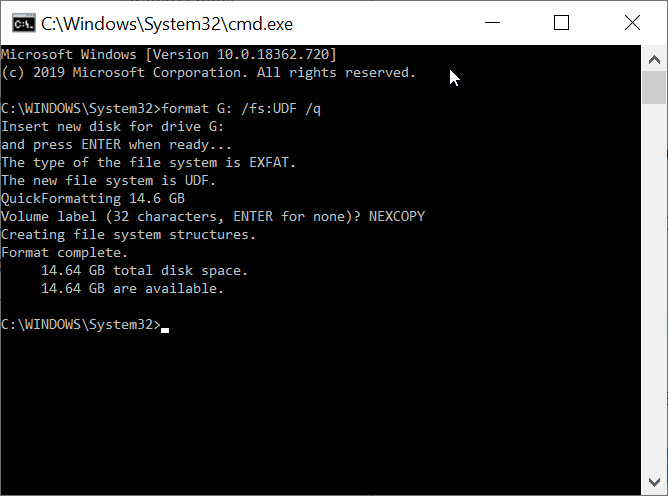
format G: /fs:UDF /q
(Replace G with your drive’s letter.)

The /fs parameter specifies the file system (UDF), and /q instructs DiskPart to perform a quick format.

5. Press Enter when asked to confirm the drive is inserted.
6. Enter a Volume name, or leave it blank by pressing Enter.

Naming UDF formatted drive

DiskPart will complete the format and confirm the result. Type exit to close the Command Prompt.

DiskPart UDF format complete

Note: the /q command deletes the file table and root directory, but it does not scan for bad sectors. Combined with the lack of UDF repair tools, this makes the file system especially fragile on portable devices. For most users, exFAT remains the safer choice for cross-platform compatibility.

Continue Reading

Only 1 Compact Flash Card Can Be Use – Others Are Ignored

Why only one Compact Flash Card mounts—and how to fix disk signature collisions.

The most common reason why only one Compact Flash Card is usable when multiple cards are connected is a device signature collision.

If you are dealing with bootable devices and see this problem, the collision is almost certainly the cause. If the devices aren’t bootable, the details below may not apply.

Compact Flash Card hard drive sketch

Continue Reading

News Review: Nexcopy Launches USB-C Duplicator For Mass USB-C Duplication

News Review: Nexcopy Launches USB-C Duplicator For Mass USB-C Duplication

Nexcopy announced a new USB-C Duplicator, available for immediate purchase. The USB-C200PC is a 20-target, PC-based system designed for high-volume Type-C deployments and comes bundled with Nexcopy’s feature-rich Drive Manager software.

Via the EIN Presswire service, Nexcopy noted rising demand driven by Apple’s adoption of USB-C on Macs and the broader shift to USB-C across IoT products. As device makers migrate to Type-C, duplication workflows are following suit.

Nexcopy USB-C duplicator front view

Being PC-based doesn’t mean sacrificing speed or capability. The USB-C200PC leverages modern SuperSpeed protocols (commonly referred to as USB 3.1/3.2) and writes at the connected device’s maximum sustained rate. While USB 3.1 Gen 2 advertises up to 10 Gbps theoretical throughput, real-world duplication performance depends on the media and workload.

The system ships with Drive Manager, Nexcopy’s control software known for granular job control, verification, logging, and advanced media functions.

Highlighted Features of the USB-C Duplicator

  • Six copy modes to match source/target workflows
  • Binary device copy supporting all formats (HFS, ext2/3/4, proprietary, etc.)
  • Unique data streaming to each USB-C socket (serialization, per-drive payloads)
  • Binary verification for integrity assurance
  • Erase and DoD Erase options for disk sanitization
  • Data collection to extract files from connected USB-C devices
  • Intuitive, informative Drive Manager UI with logging
  • Upgradeable to PRO Series for controller-level write protection (read-only)
  • Upgradeable to PRO Series for partitioning and advanced media control

The unique data streaming mode is a standout for publishers and on-demand fulfillment: it allows static content plus per-device files (keys, licenses, IDs) to be injected in a single run.

Nexcopy’s PRO Series capabilities—such as USB read-only (write protection), controller-level partitioning, and serial-number control—are also available as upgrades for the USB-C200PC platform.

Why USB-C Matters (Context)

Versatility: A single reversible port that can handle data, display, and power (USB PD) simplifies modern device design and deployment.

Speed: With USB 3.1/3.2 and Thunderbolt 3/4 support on many hosts, data rates are dramatically higher than legacy USB.

Power Delivery: Faster, smarter charging and the ability to power bus-powered peripherals.

Compact form factor: Ideal for thin, light laptops and embedded/IoT designs.

Broad adoption & future-proofing: Momentum across laptops, mobiles, and accessories ensures longevity and compatibility.

The USB-C200PC duplicator lists at $1,299 and is available through major online retailers (e.g., Amazon, Walmart.com, Newegg) and a worldwide network of authorized resellers.

Nexcopy has indicated larger models are in the pipeline, with 40-target and 60-target USB-C duplicators anticipated later in the year.

Continue Reading

The Micron c200 is 1TB of microSD Beastly Data Storage

Micron, with the corporate office based in Boise Idaho, introduces the c200 microSD card with a data storage range from 128GB to 1TB.  No that wasn’t a typo, One Terabyte of storage.  The card was designed to address the demand around 4K video recording and playback. 

The card has read speeds near 100MB/s and write speeds of near 95MB/s.  The c200 card collection can reach these speeds because of Dynamic SLC cache; which is intelligent maintenance during idle time for sustained peak performance.  The Micron microSD card uses the UHS-1 Speed Class 3 for capture and Video Speed Class 30 for support.  Meaning to get these transfer rates, the host device must also be UHS-1 compliant.

c200 microSD 1TB

In case you are wondering, the card uses Micron 98-layer 3D QLC NAND memory, which is cost effective for both consumers and commercial customers.

If you have an Android device, you can be even happier with the card meeting the Application Performance Class 2 specification which is built-in memory expansion for compatible Android devices.

The Application Performance Class 2 (A2) is defined by the Secure Digital (SD) Physical 6.0 specification. A2 makes SD memory cards higher performance devices than A1 devices by using functions of the Command Queuing and Cache framework. The Application Performance Class can be applied to UHS SDHC/SDXC Memory Card product family.

Continue Reading

60 Amazing Custom Flash Drive Designs

Here are 10 of the 60 incredible USB flash drive designs. This article was pulled from GetUSB.info which has all 60 custom USB flash drive designs. Apparently all these designs have been made for other clients. We didn’t know how detailed these could get, but you can clearly see there really is no limitation to what can be done…

Flash Drive #1

Custom USB Flash Drive

Flash Drive #2

Custom USB Flash Drive

Flash Drive #3

Custom USB Flash Drive

Flash Drive #4

Custom USB Flash Drive

Continue Reading

Copyright © 2011-2019 by
USB Powered Gadgets and more…
All rights reserved.

SD Card Duplicator Equipment

GetFlashMemory.info has reviewed SD Card Duplicators by Nexcopy.  Our results found the product to be reliable, fast and accurate.

They manufacture both PC connected and standalone systems to fit any type application

Turn your product into a custom USB shape. Right down to the last detail. Click to see over 30 examples of custom shape USB drives.

Twitter One

Twitter Four